Pixel perfect pixel art texture painting in Blender
Paint Pixel Art on the model in the 3D viewport and in the Image Editor. 1-click UV unwrapping. 10s of tools.
Blender 3.6 to 5.2. Available on itch.io, Superhive, Gumroad and Hotmart.
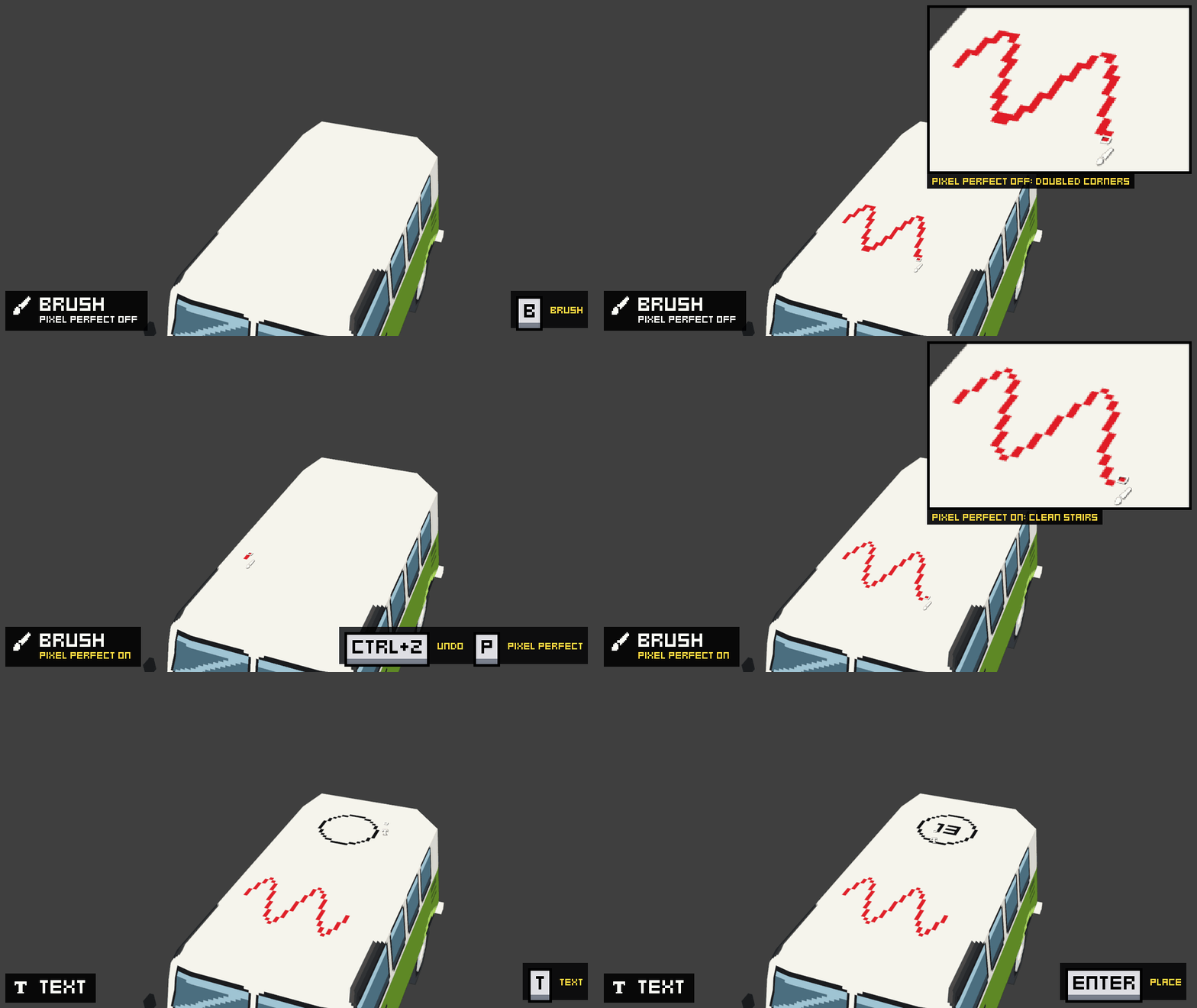
- Paint in 3D on the model or in 2D in the Image Editor, with the same tools (perspective or orthographic, move the camera around freely while painting).
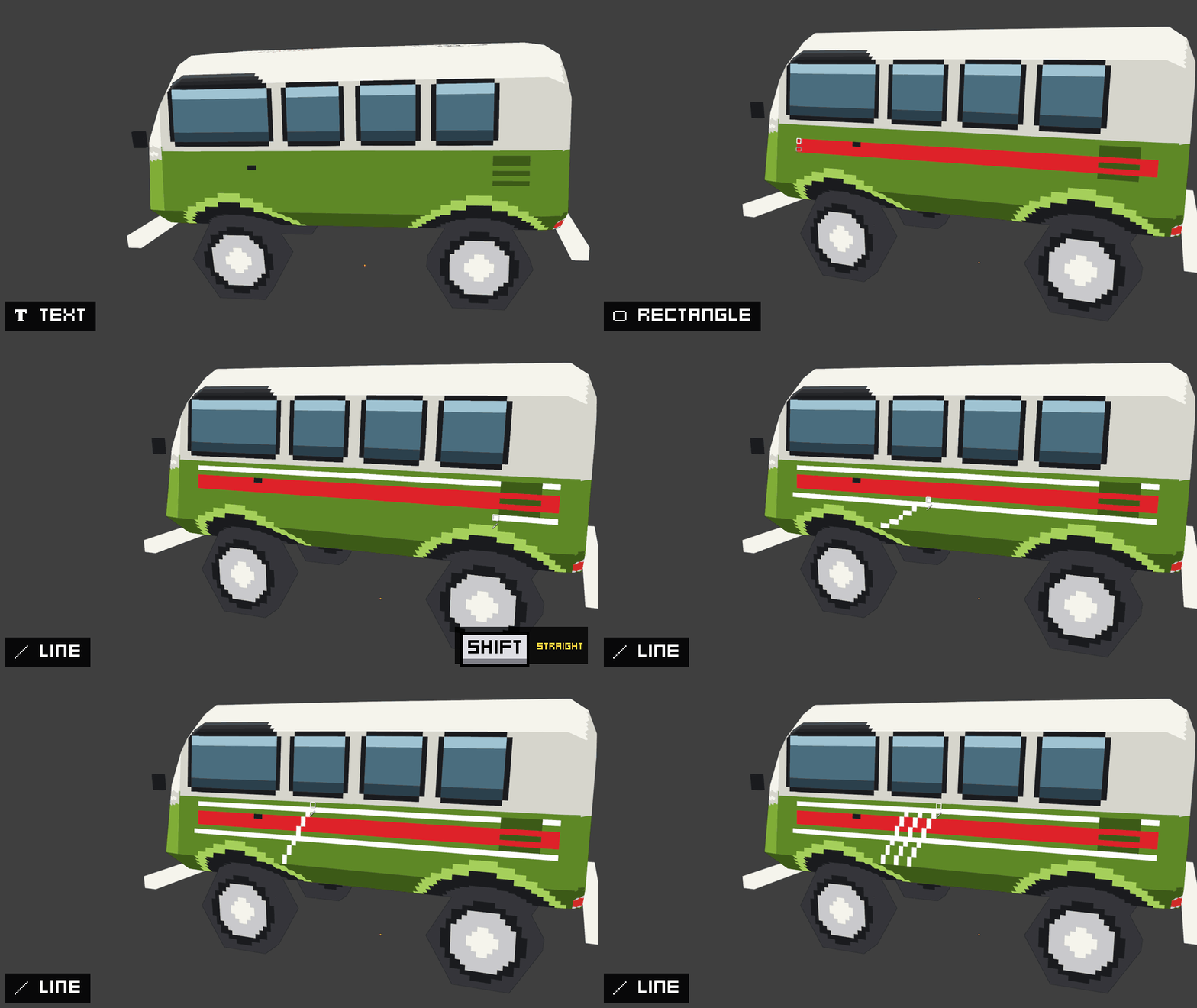
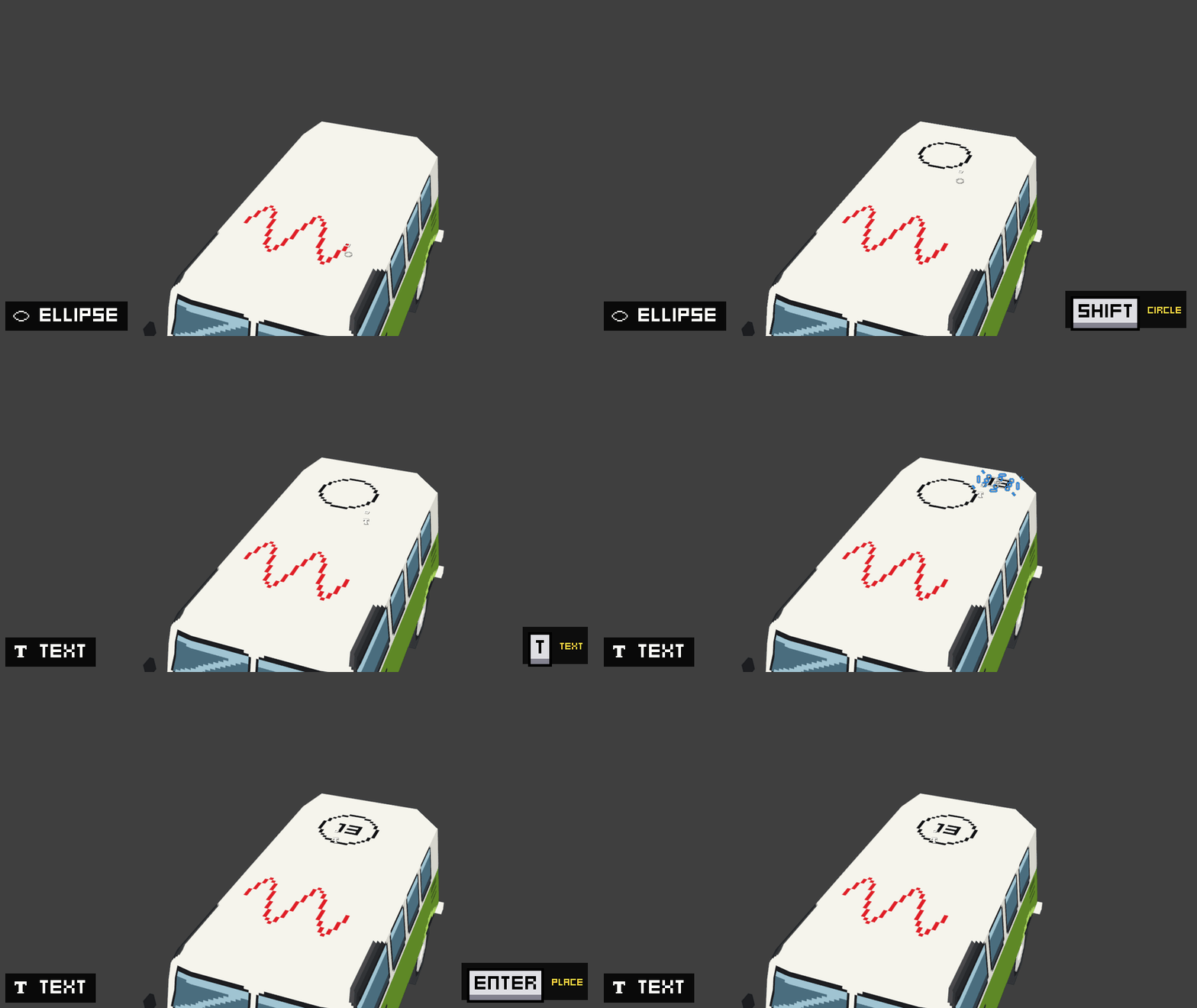
- Pixel perfect lines in every tool: brush, line, rectangle, ellipse, path, bézier curve, text. All tools are directly inspired by Aseprite, so you are going to feel right at home.
- Custom brushes: select a shape in the Image Editor and save it as a brush (up to 64x64 pixels), then paint with it on the model or in 2D. Keep it in the preferences for every file, or in the Asset Browser.
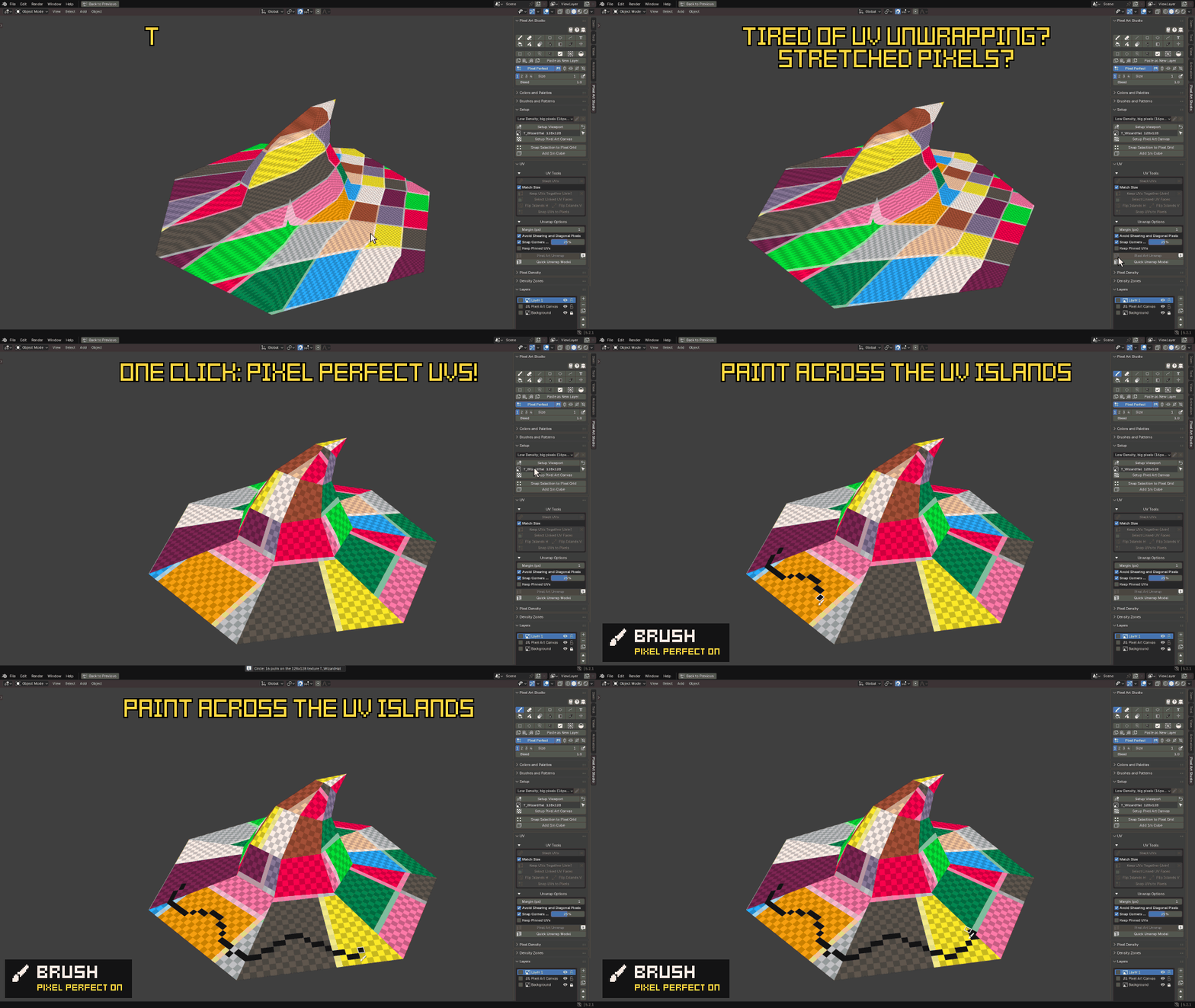
- Strokes go over the edges of the faces and keep going on the next face, wherever its UV island is.
- Tired of UV unwrapping? Stretched pixels? Quick Unwrap Model: one click, pixel perfect UVs. Every face laid flat with its exact shape and pixel size.
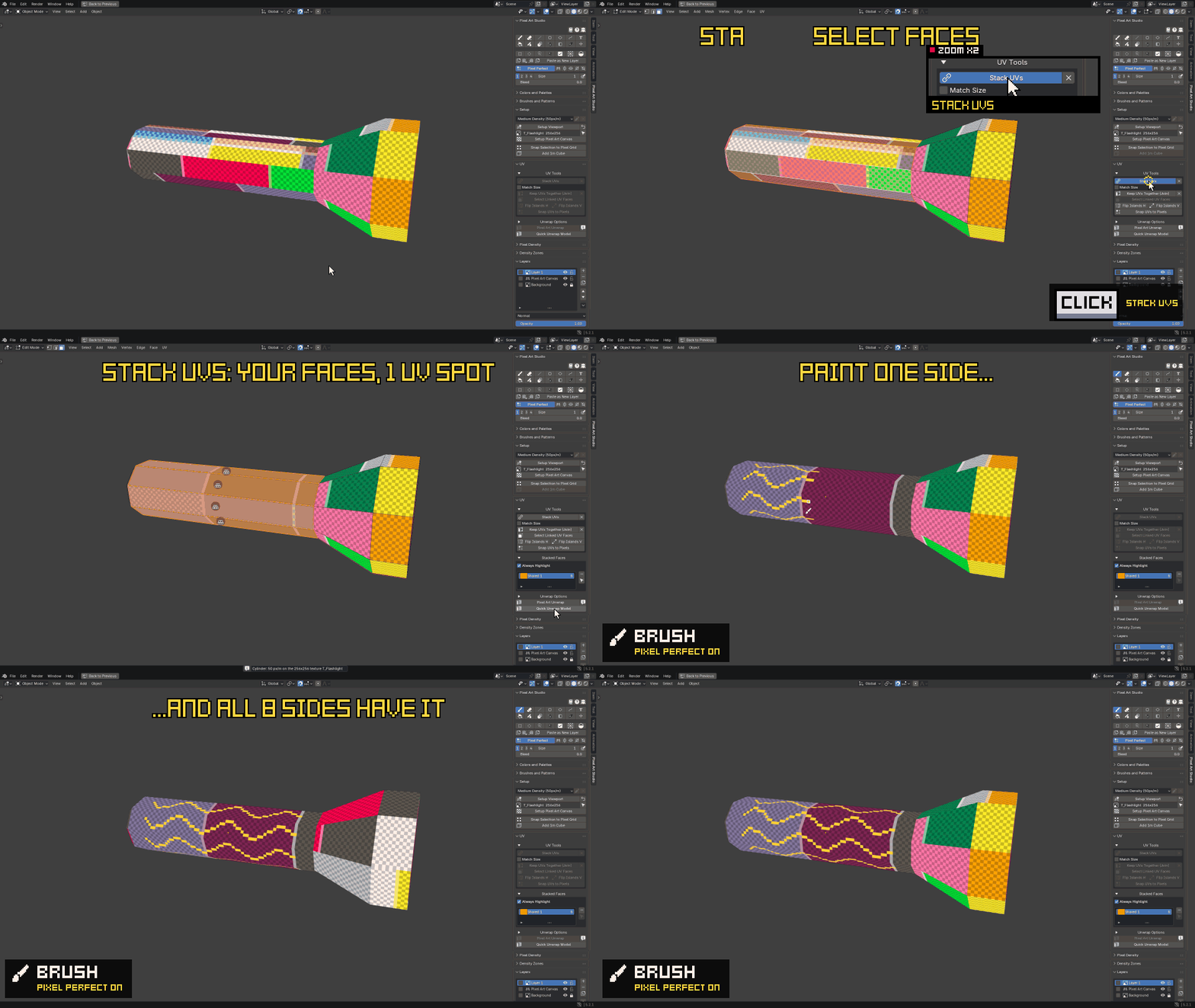
- Stack UVs: select faces and they paint the same pixels (ex: paint the 8 sides of a cylinder only once).
- Keep Together (Join): neighbouring faces stay connected as one UV island (ex: a character's face, a vehicle's front).
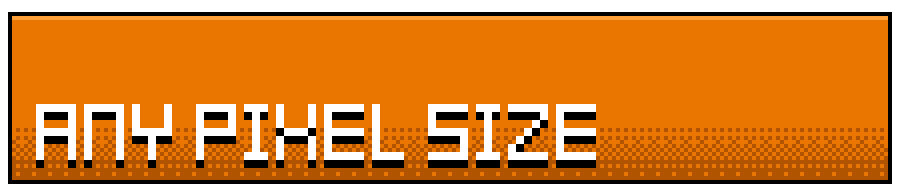
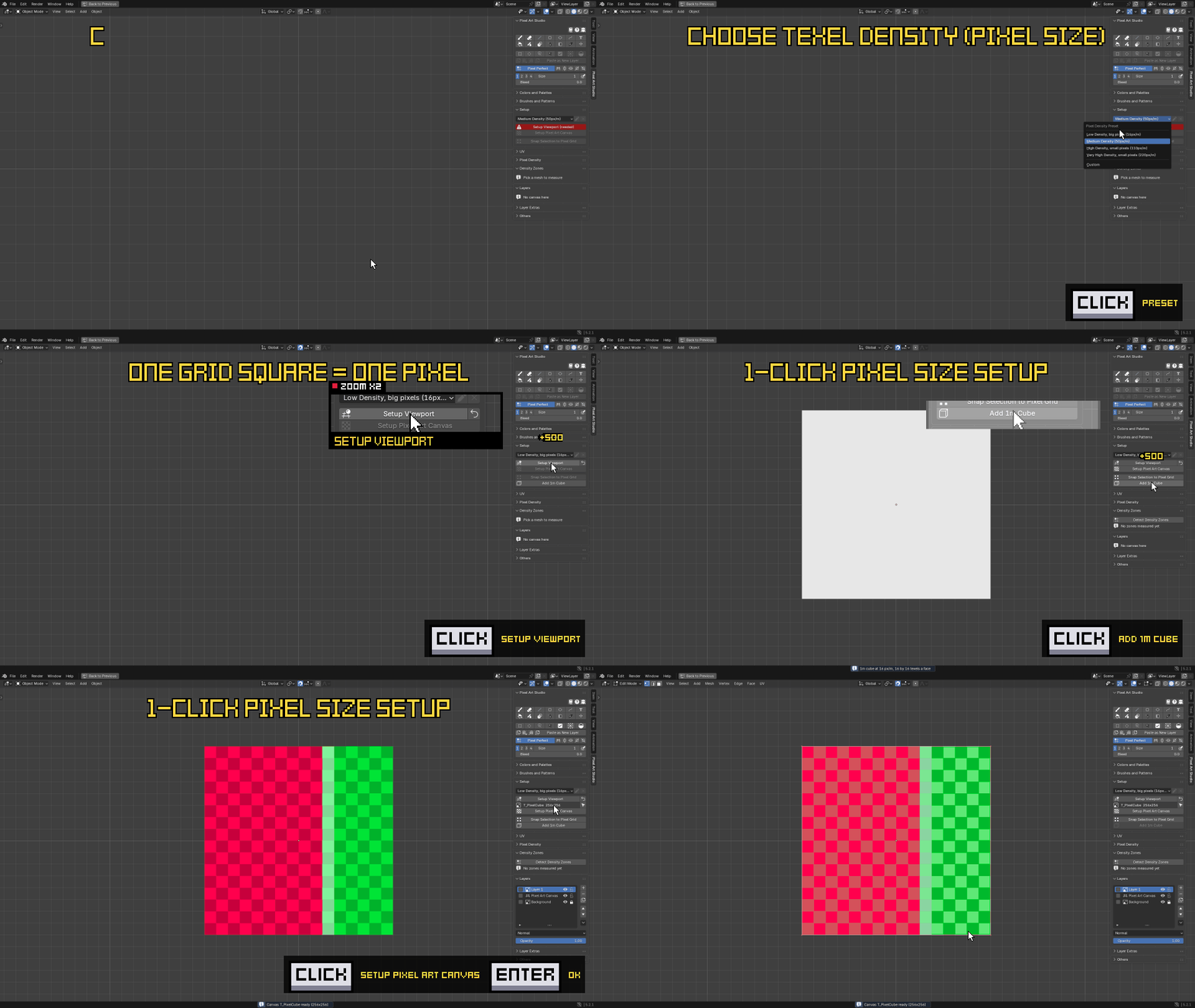
- One-click pixel size setup: this solves one of the biggest pain points of doing pixel art in Blender. Pick the pixel size, click
Setup Viewportand one grid square is exactly one pixel. - Density Zones: a different pixel size per face (a character's head drawn at twice the density of the legs, for example, which means smaller and more pixels for the head).
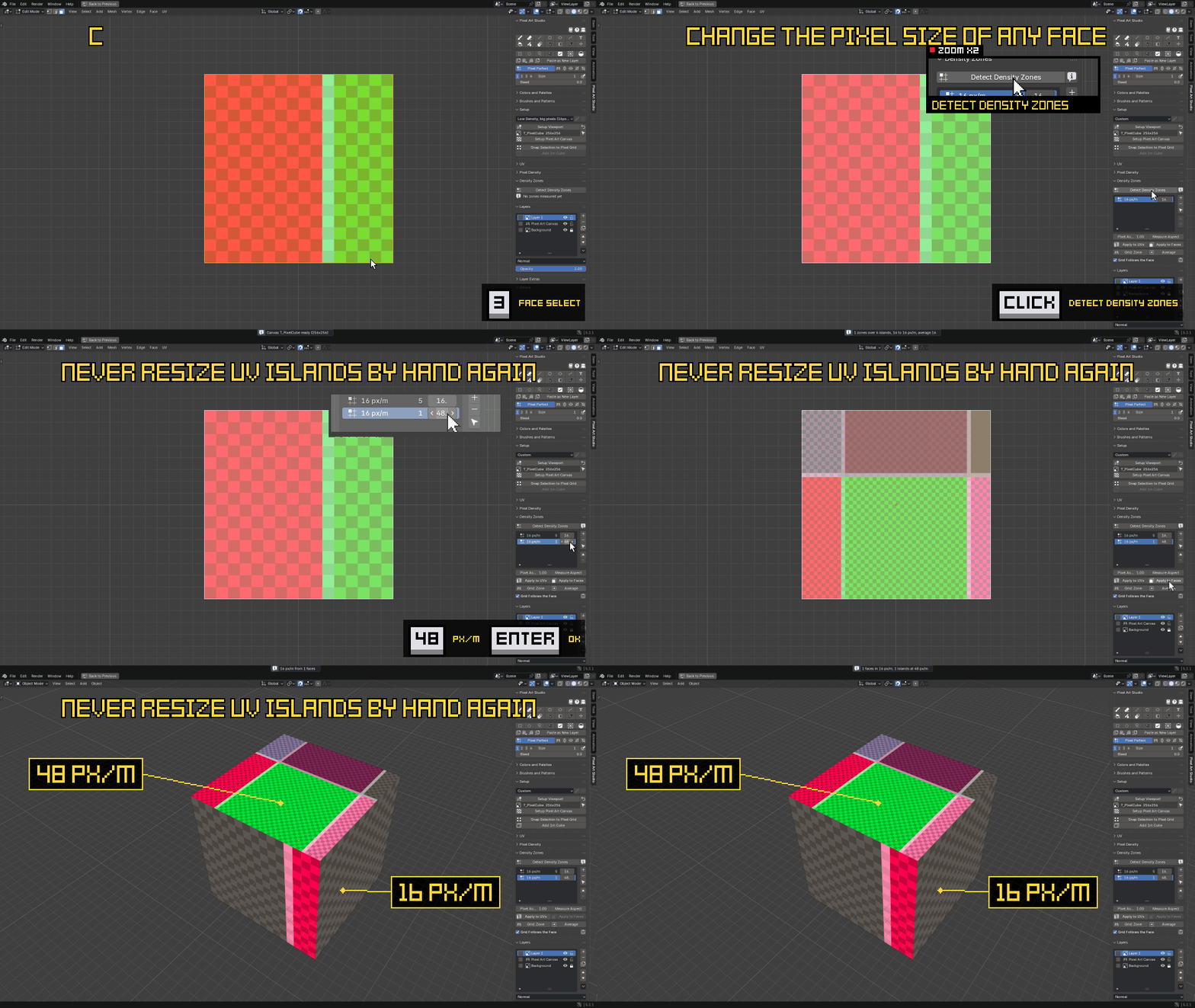
- Change the pixel size of any face while you are still modeling (
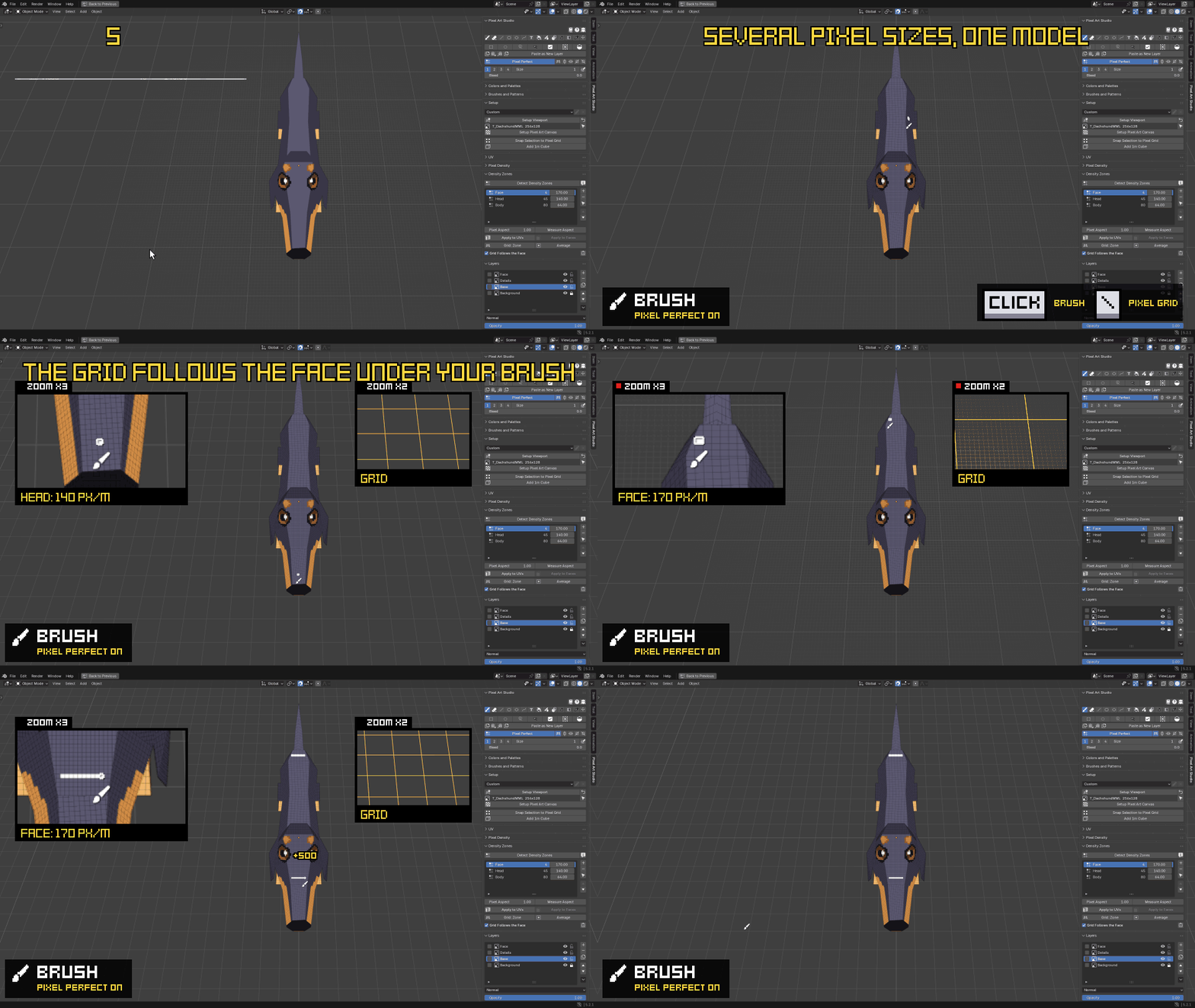
Apply to Faces). Never resize UV islands again. - The grid follows the face under the cursor, at that face's own pixel size.
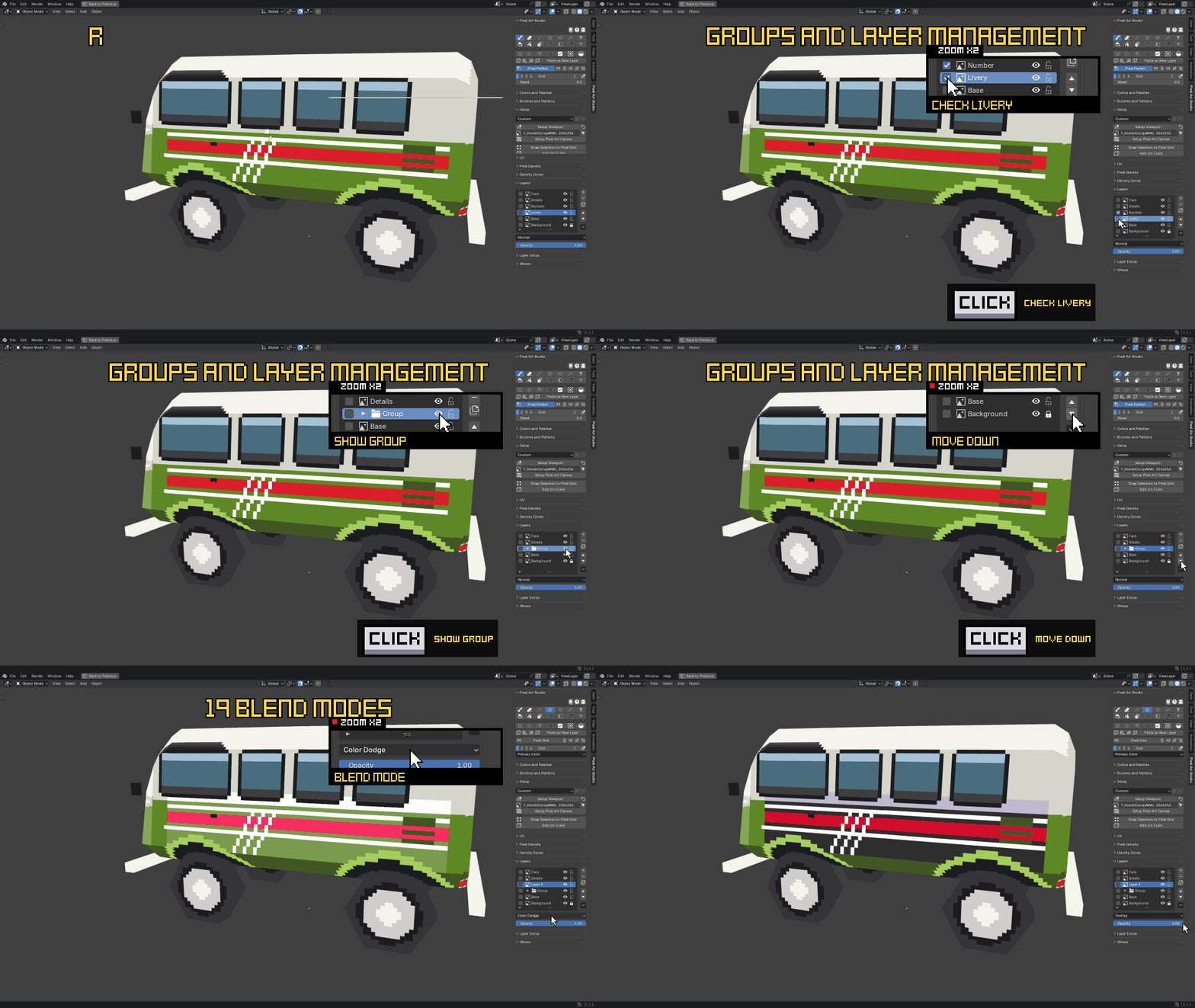
- Layers and groups on a Blender texture, with blend modes, opacity, locking and merging (like painting programs).
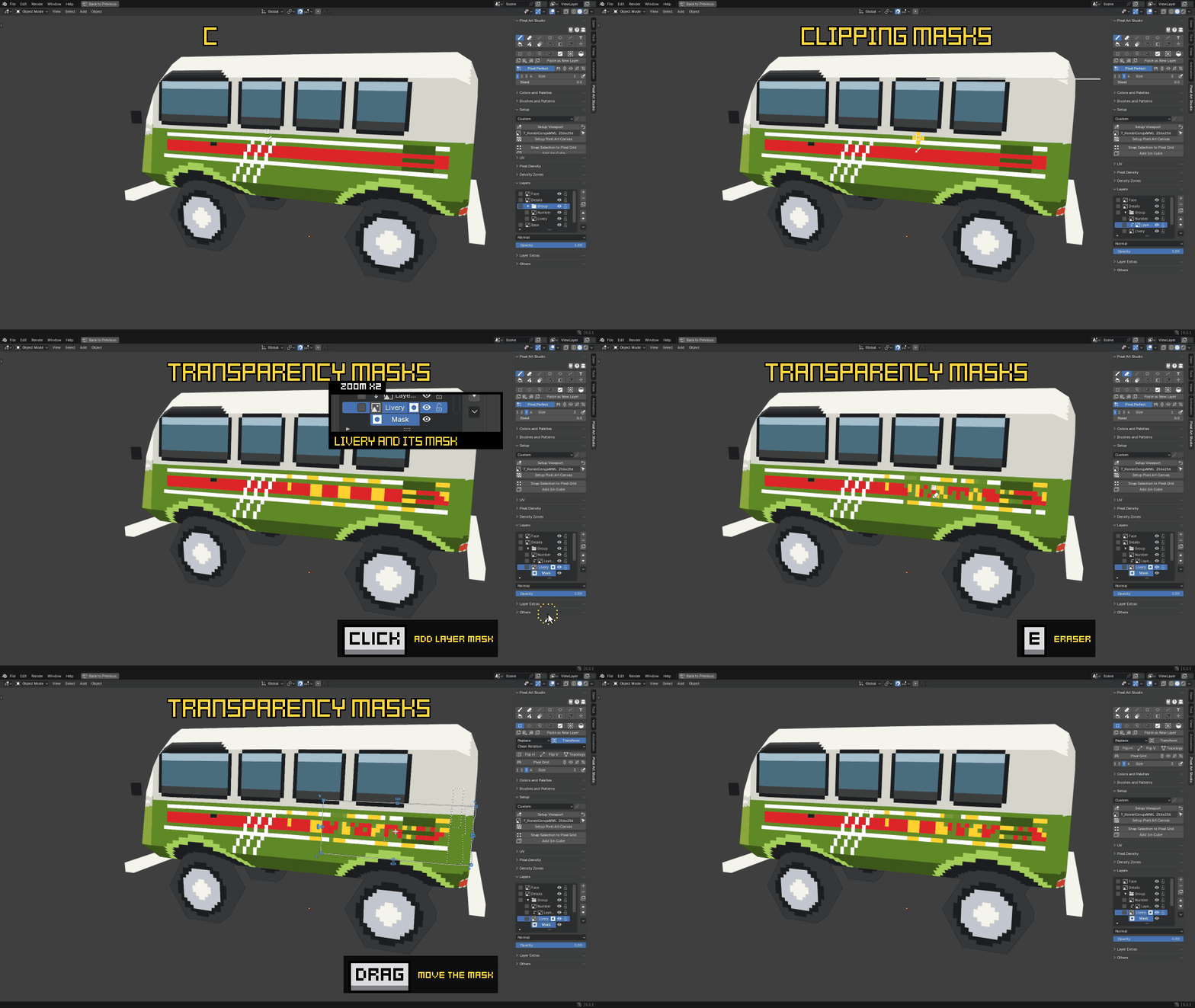
- Clipping layers and transparency masks (like Photoshop and Krita).
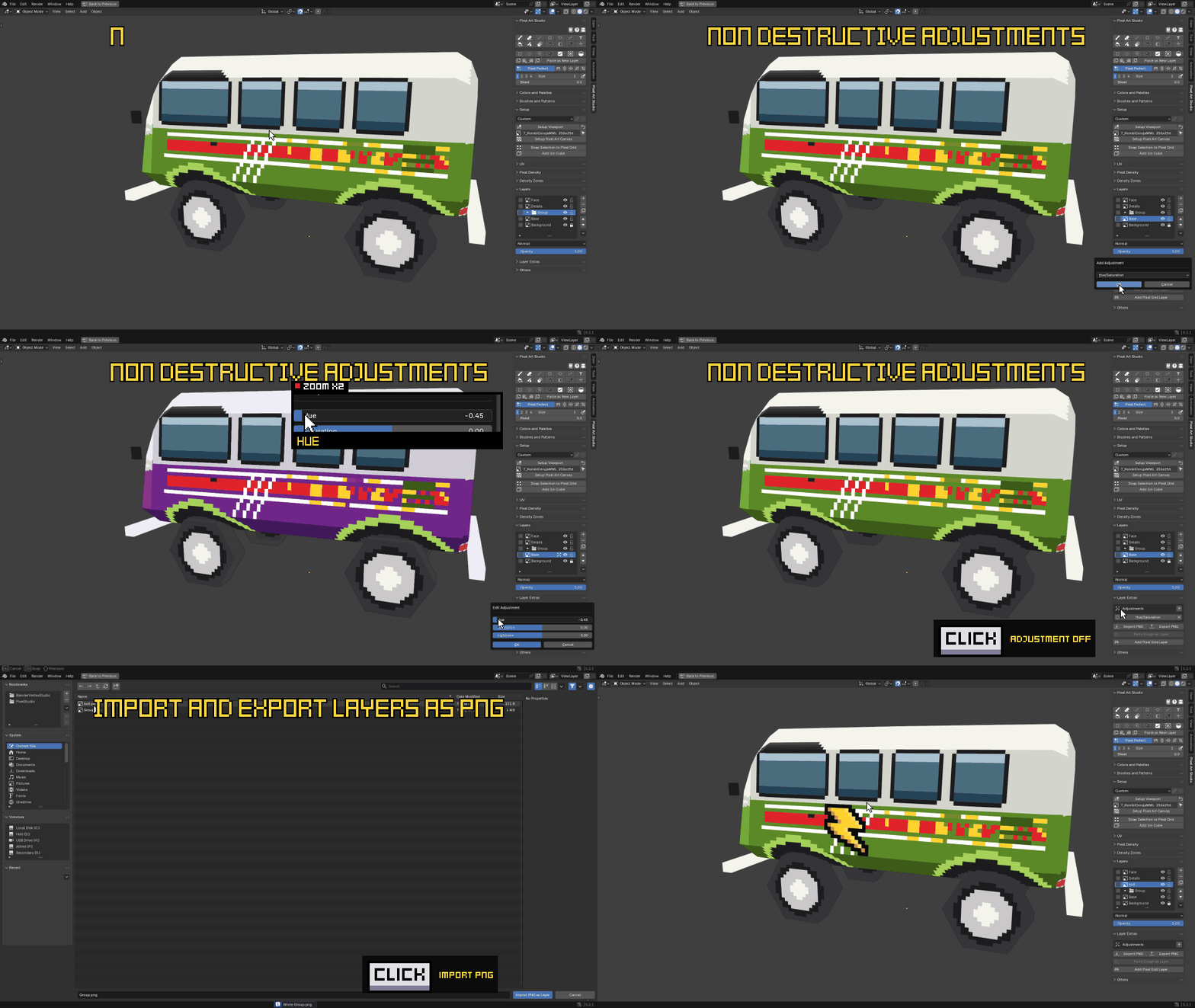
- Non-destructive adjustments: brightness and contrast, hue and saturation, color curves.
- Export layers as PNG, import or paste images as layers.
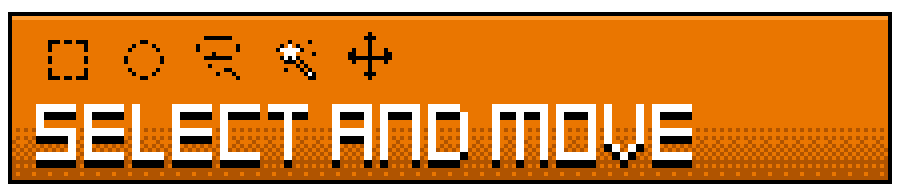
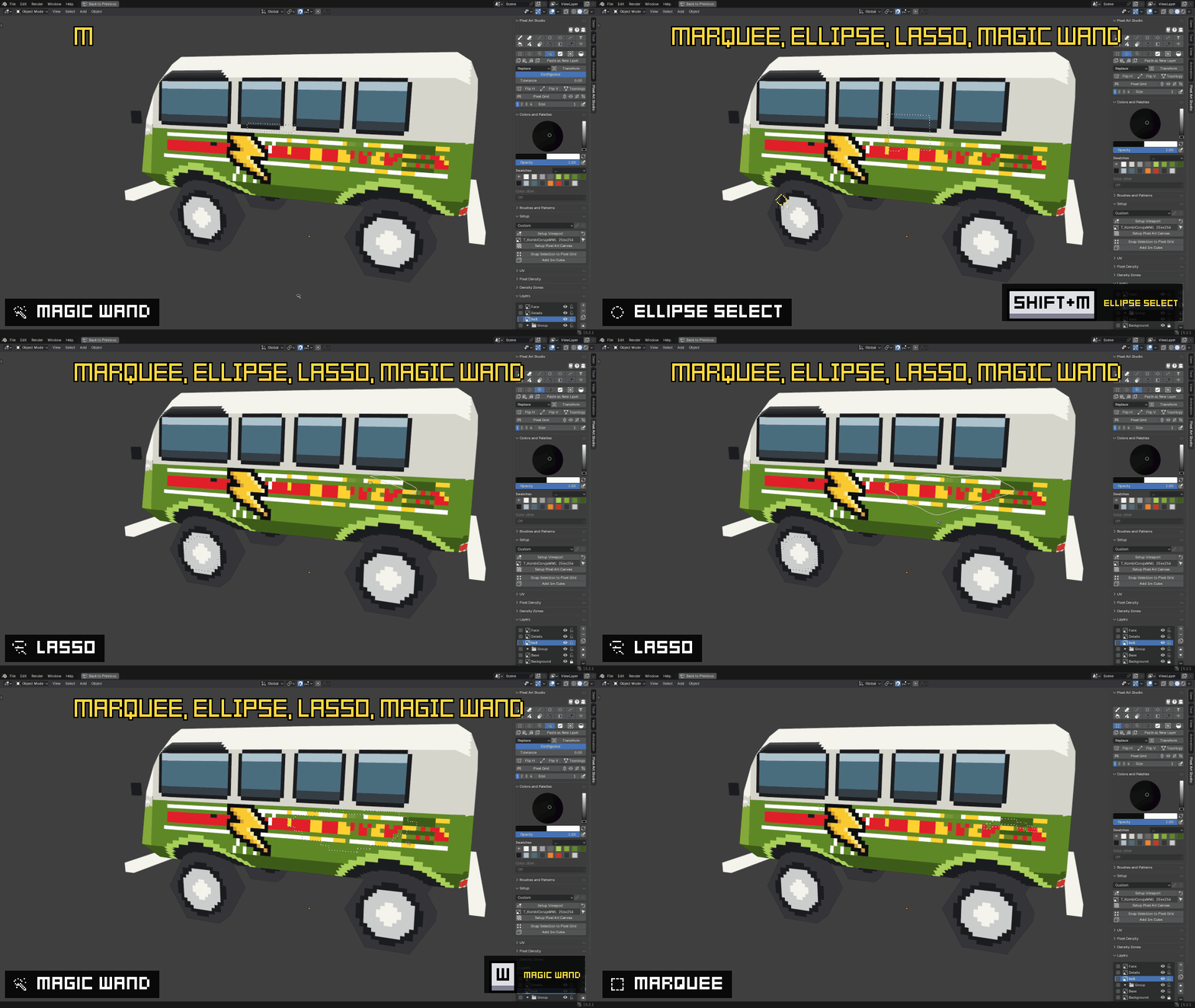
- Rectangle, ellipse, lasso and magic wand, on the model and in 2D.
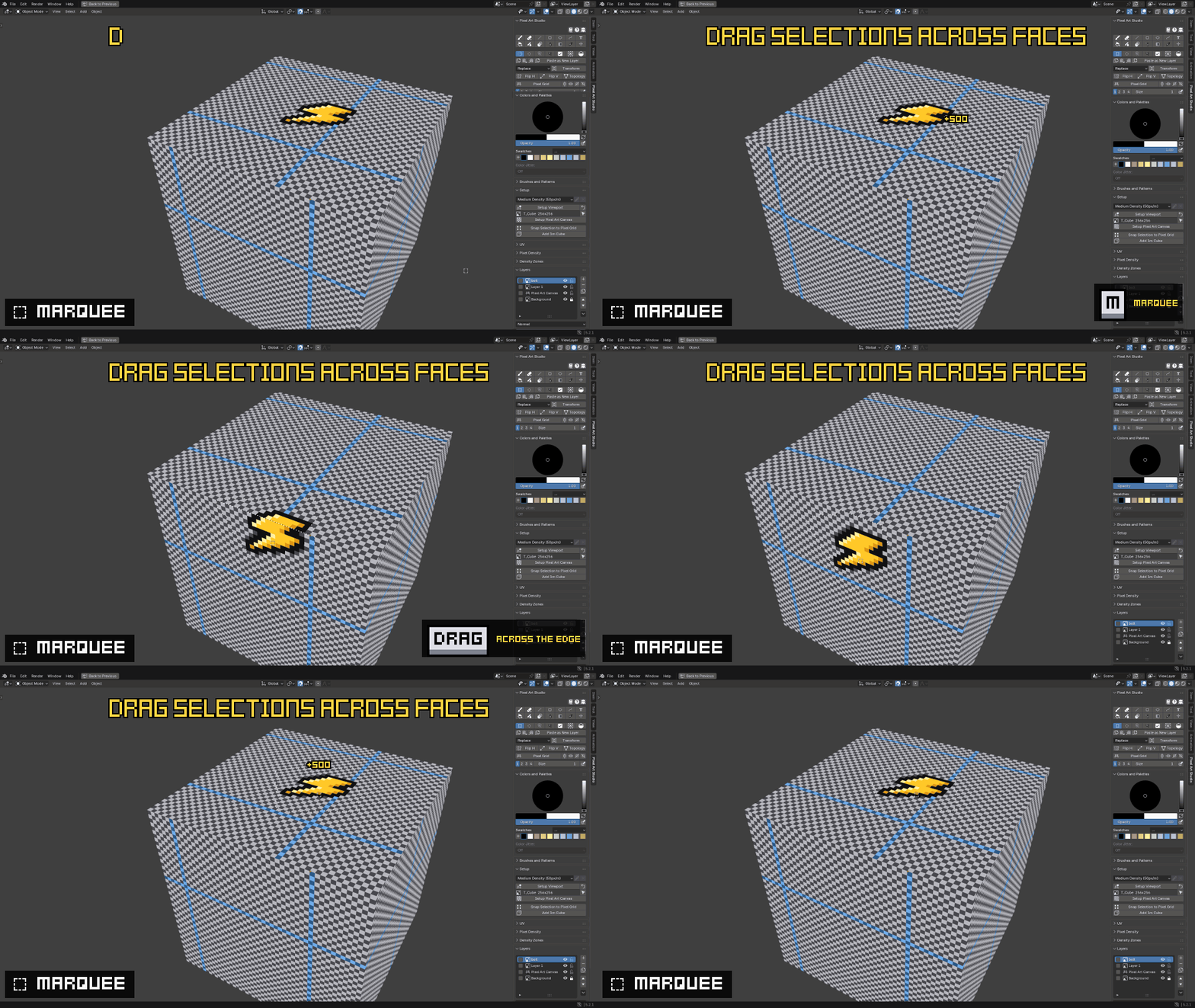
- Selecting in 3D is per texel: drag the selected pixels across the faces of the model.
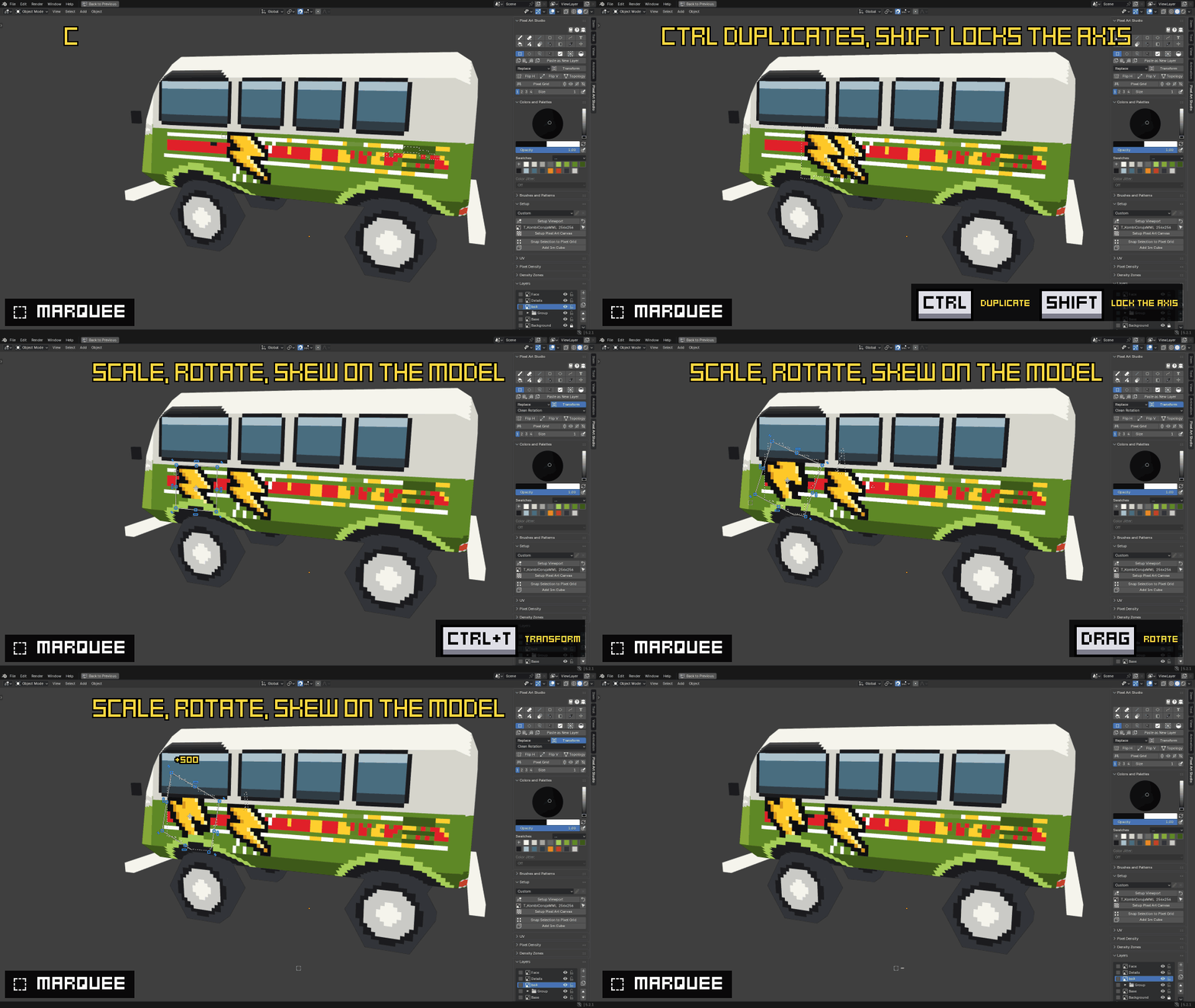
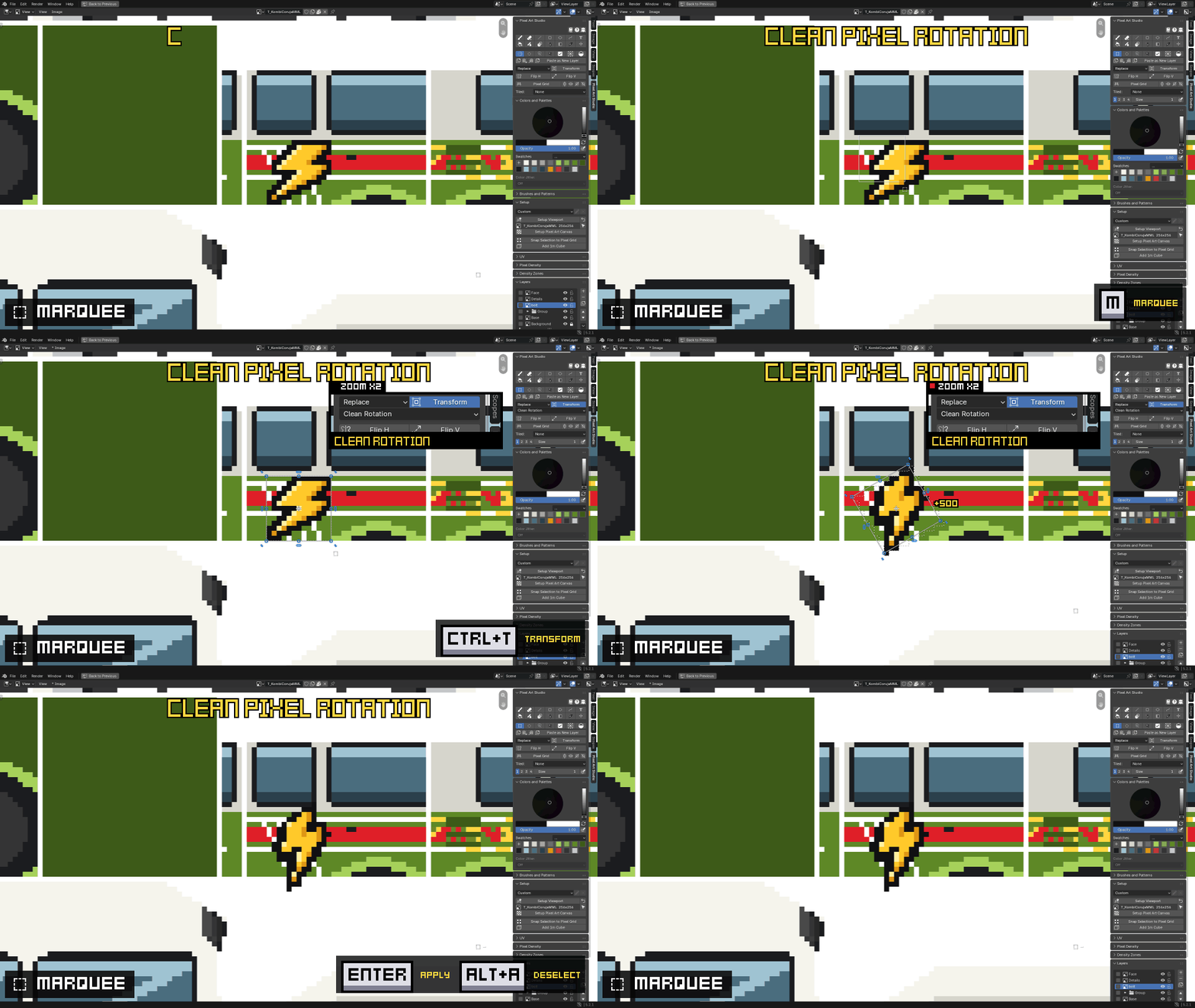
- Duplicate, move, scale, rotate and skew, and Clean Pixel Rotation (no new colors).
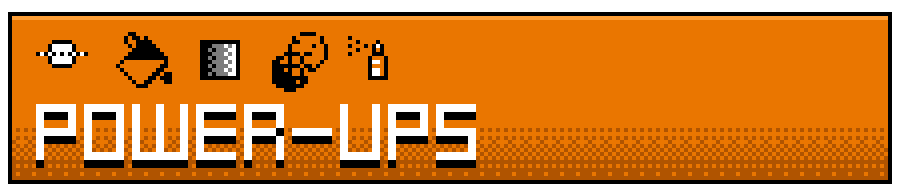
- Brush and fill patterns, dithered gradients, shading tool and pixel spray.
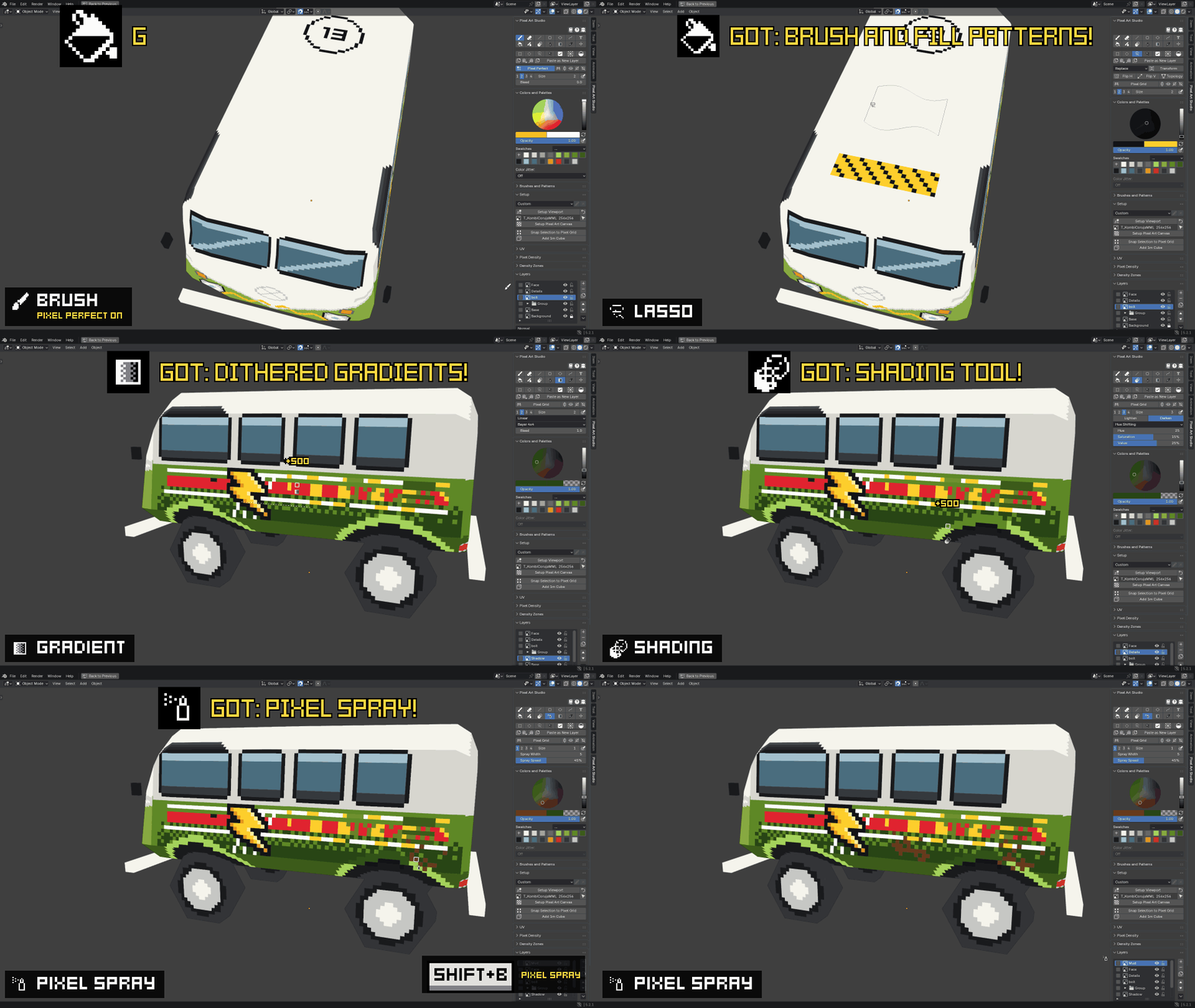
- Noise and Color Jitter, and built-in palettes.
- 2D and 3D symmetry, and Tiled Mode for seamless textures.
- Game engine integration with Godot, Unity and Unreal Engine: save in Blender and the model is in your game, as pixel art.
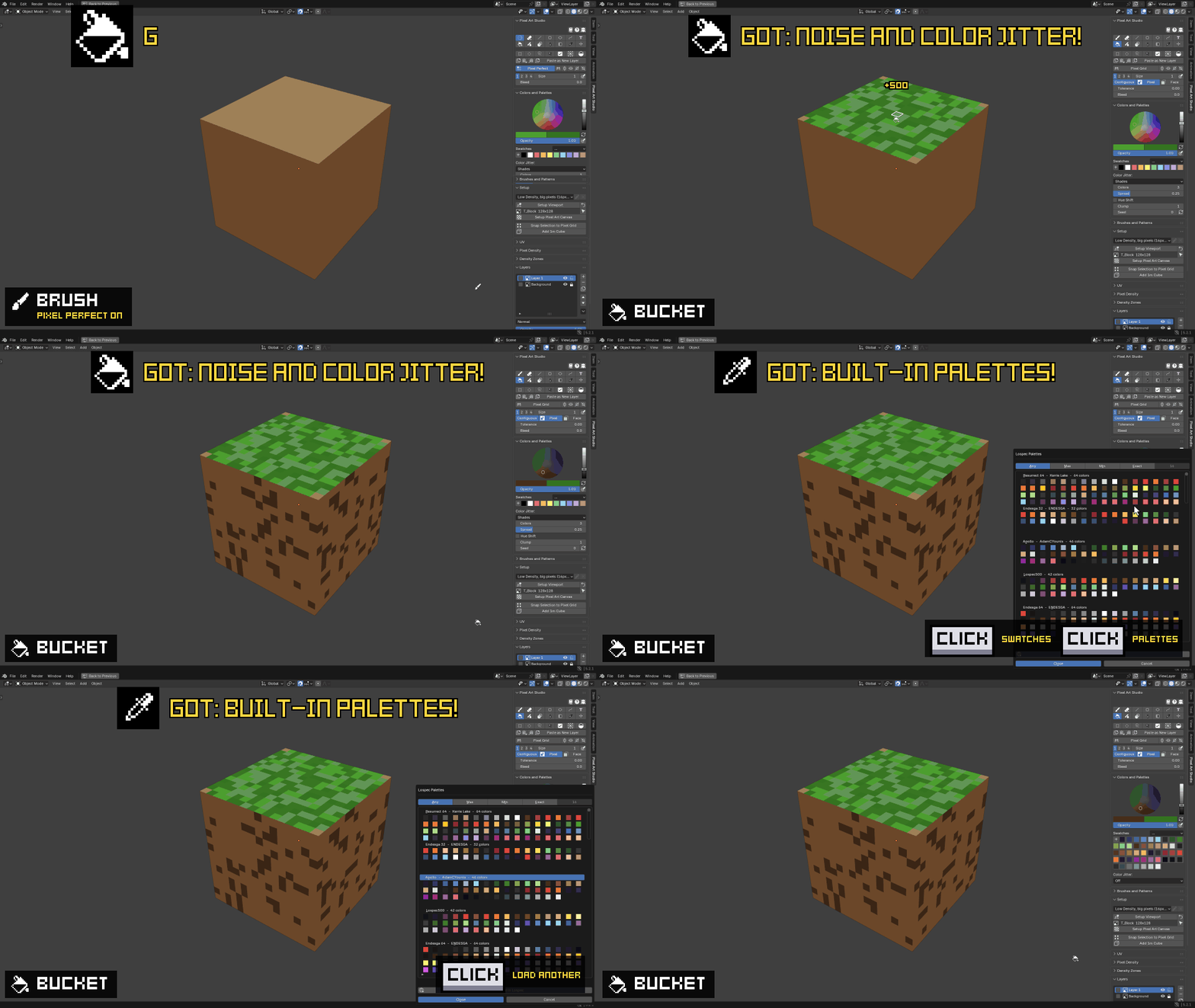
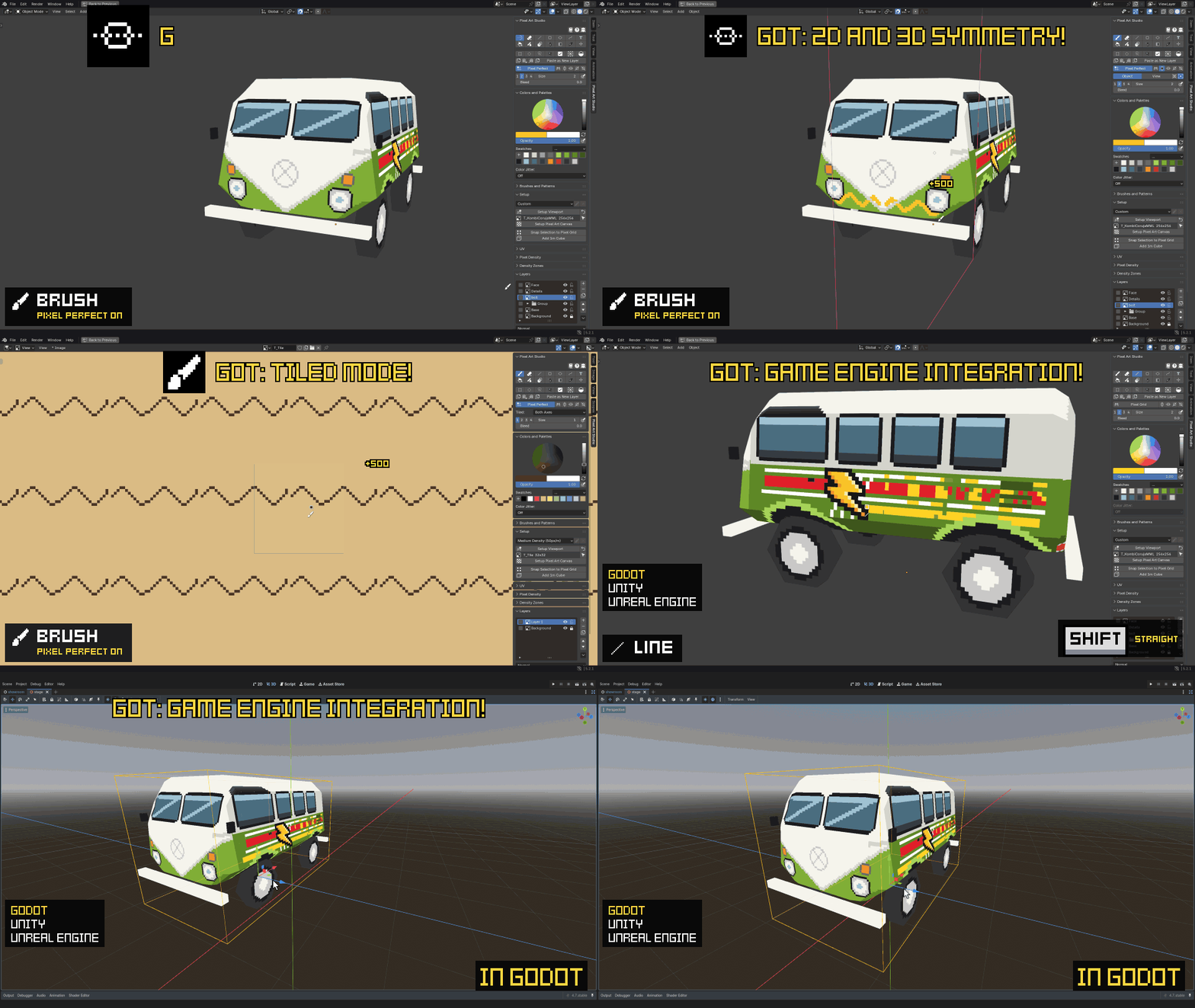
Pixel art right on the model, in Blender.
"I am happy to let you know that I use your addon full-time. I use it daily at the studio where I work. I used to work with Blender and Aseprite, but now I'm sticking with your addon for 90% of my work."
"a MUST HAVE for any 3D artist who wants to work with pixel art inside Blender and stop the sycle of re-importing your textures from 2D software like Aseprite. [...] the best part is that you can just create straight, curved lines or shapes like a circle etc. Thats the part basically all the 3D painting softwares were missing for pixel art."
"I have been using this and it unironically changed my life."
"As someone who is very new to Blender, I can say that Blender is hard! This tool is not! It's exactly what I want for combining polygons with nice, chunky pixel art. Suddenly I'm way less stressed about learning how to do UV mapping and stuff like that once I move on to 3D in my game making course, because I can just draw pixel art right on the polygons!"
"Super clean add-on. I used to have very messy and disconnected setups for 3D pixel art, but this solves every issue I had before without taking away control over the final look. Alfred is also insanely active with updates and support. Easily worth picking up!"
"Damn, after a day of actual work using this tool my review is 10/10! Already a part of my standart workflow"
"Pretty much every feature this has answers a "Damn, I wish Blender had that!" scenario I've ran into before. Looking forward to incorporating it into my project workflow."
"This add-on rules! Super easy to set up and get started right away thanks to all the QoL features that have been programmed in. Alfred is also a very receptive and responsive developer, implementing features above and beyond what I've seen from other similar add-ons. Highly recommended!"
"Forgot to mention I used this Blender addon to paint the pixel art textures directly on the model! It made it so much easier than jumping back and forth between Blender and Krita 😭"
"Fantastic tool. It's made making pixel art models so much faster. I've moved my workflow over from Aseprite and Blender texture painting to entirely being in this add-on. Dev has been super responsive to fixes and additional features. Highly recommend!"
"if you want to do full pixel art painting in Blender, not just layers feature, but also all the painting tools like selection, gradient, fill, and more, this is the addon you are looking for!"
"I installed v1.1 and thought to myself what features I would like to be added, after checking twitter you have already announced v1.2 adding the features I wished for, and again with v1.3 with amazing development pace. its like santa reading my wishlist, thank u for this great tool :)"
"Adds an Aseprite-like workflow and features to your 3D viewport! An actual godsend for low-res, retro or pixel-art texturing."
"Tried it! It's not only epic that it let's you actually DRAW the pixel perfect textures, but also generates a nice UV maps for them :3 I tried them in substance painter and worked great >:3"
"I finally had the time to test the Pixel Art Studio plugin for Blender. (spoiler: its freaking amazing)."
"Amazing work! Such fast updates and great new features. It's an amazing addon, I've been thoroughly enjoying using it and all these new features will make the workflows even easier and faster."
"If you love doing pixel art for 3D, you're going to love this tool. It has everything you need, layers works as normal in any app, selection and marquee tools, and a brush that works perfectly with pixels. Honestly, just buy it!"
"Very good plugin for pixel art asset creation in blender, easy to use"
Install the add-on, press N in the 3D Viewport and click the Pixel Art Studio tab. Then, depending on your model:
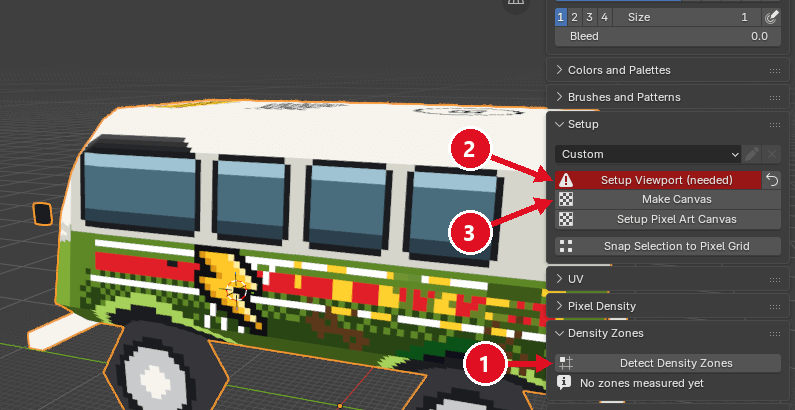
Detect Density Zones(optional, inDensity Zones, when the texture mixes pixel sizes).Setup Viewport (needed).Make Canvas: the texture becomes the first layer, at the pixel size it already has.
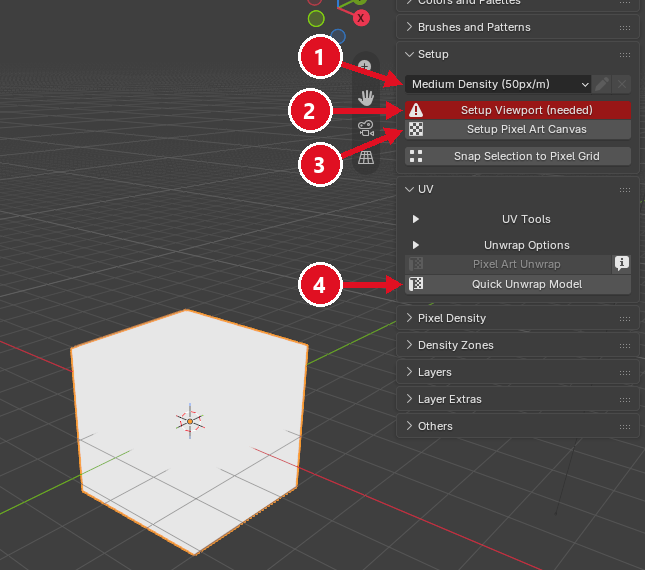
- Pick the pixel size.
Setup Viewport (needed).Setup Pixel Art Canvas.Quick Unwrap Model(no UVs yet? one click and every face is on the pixel grid).
The whole walkthrough, with videos: the quick start tutorial.
See every feature
Every drawing, selection and layer tool works in the 3D Viewport and in the Image Editor, in perspective and orthographic views, so you can move the camera around freely while painting.
- Pixel perfect drawing and painting pixel art tools: brush / pencil, eraser, line, rectangle, ellipse, bucket fill (by pixels, by selected faces, by color), blur, scramble, gradient (with dithering options), shading brush, spray can, text tool, path, bézier curve, filled polygons, opacity, color picker, pressure sensitivity.
- All tools have pixel perfect line handling algorithms.
- Custom brushes.
- Fill and dithering patterns for all drawing tools (brush, shapes, eraser, bucket fill, etc), with custom patterns.
- Bleed (UV dilation) for the brush, eraser, line, bucket fill and gradient.
- Straight, 45 degrees and isometric angled lines.
- Pixel selections: rectangle, ellipse, lasso, magic wand, invert selection.
- The selection tools work on the 2D and 3D viewports, and you can drag selected pixels across the faces of the model.
- Selections can be made by topology, which selects and fills half-pixels (sub texels) in diagonals.
- Transform layers and selections (scale, rotate, skew) and flip them horizontally and vertically.
- 2D and 3D viewport pixel grid overlay.
- Tiled Mode in the Image Editor, to paint seamless textures.
- Mirror and symmetry drawing on the 2D and 3D viewports.
- Colors and palettes: Blender's color wheel inside the panel, color swatches, color palettes (and a palette library with more than 500 predefined palettes), pick colors from any object and any area of the viewport.
- Layers and layer management with locking, grouping, merging, visibility toggling and blending modes similar to painting programs.
- Non-destructive adjustments (brightness and contrast, color curves and HSL), stackable, per layer.
- Clipping layers and transparency masks like Photoshop and Krita.
- Export layers as PNG and paste or import images as layers.
- One-click pixel size and pixel density setup with predefined presets, as well as texel density detection for existing meshes (you can have chunky pixels and fine, detailed pixels).
- One-click setup buttons to set up the viewport for pixel art (grid size and snapping adjusted to the pixel size).
- UV tools made for pixel art:
- Pixel Art Unwrap: lays each face flat with its exact shape and pixel density, no stretched pixels. Quick Unwrap Model unwraps the whole model from any mode.
- Share UVs: stack faces on the same UV spot, so they paint the same pixels (ex: paint the 8 sides of a cylinder only once).
- Keep Together (Join): neighbouring faces stay connected as one UV island (ex: a character's face, a vehicle's front).
- Flip UV islands, keep pinned UVs, and lists to manage the shared and joined faces.
- Density Zones (optional): assign and manage texel density values per face, allowing for uniform pixel size across the whole mesh or different pixel sizes per face.
- Different density zones automatically resize Blender's grid on the fly, when you hover different faces of the model, in the 3D viewport.
- Each zone has a pixel aspect (pixels taller than wide or the opposite, common in PS1 models), and Pixel Art Unwrap respects it.
- Apply Density Zones to Faces while you are still creating the model, to test different pixel sizes.
- Game engine integration with Godot, Unity and Unreal Engine: models and textures are exported when you save in Blender, and the game project gets pixel art materials automatically.
- Auto-export to glTF and FBX on save, into any folder.
- Every glTF export out of Blender writes the texture as unlit pixel art.
- Customizable shortcuts for EVERYTHING.
Every feature in detail: the documentation.
Which Blender version do I need?
Recommended (officially supported, and best performance): Blender 5.1 and 5.2. Also compatible with Blender 3.6, and Blender 4.0 through 5.0.
Do I need an external pixel art program?
No, everything is built in, Blender native. It's made 100% with Python using only Blender's APIs, with no external dependencies.
Is it a filter that pixelates the render?
No. It's not a filter or compositor setup that pixelates the scene or the model: you draw and paint real pixel art on the model's texture, pixel by pixel.
My model has a custom shader and material. Can I paint it?
Yes. Pixel Art Studio works on the texture, so you can use it with any material and render engine. Set the image's interpolation to Closest for crisp pixel art (unless you want anti-aliased pixels).
Can I paint in 2D and in 3D?
Yes, with the same tools: on the model in the 3D Viewport (in Object and Edit modes) and in 2D in the Image Editor. You can switch between Pixel Art Studio's tools and Blender's own on the fly.
Can I use a pen tablet?
Yes, the tools use Blender's own pen pressure for opacity.
Is there undo and redo?
Yes, you undo and redo normally in Blender, strokes and everything else in the same history.
Does it work with game engines?
Yes. With the Godot, Unity and Unreal Engine integrations, the model and its texture are exported every time you save in Blender, and the game project gets pixel art materials automatically (unlit, crisp pixels). For any other engine, it exports glTF or FBX into a folder of your choice on every save.
Which file do I install?
On Blender 4.2 and newer, the extension zip. On Blender 3.6 to 4.1, the classic zip. Install only one of the two. The steps: installation.
Can I use it for commercial work?
Yes, for personal and commercial work.
Where is the documentation?
The documentation has videos and GIFs for every tool, a quick start tutorial, solutions to common problems and the shortcuts.
How do I report a bug or ask for a feature?
On GitHub, where you can also see what's being worked on (the boards for the next versions), or in the support forums.
Get it from your favorite marketplace.
Blender 3.6 to 5.2, for personal and commercial work.